How to Use MetaTrader 4: A Complete Beginner's Guide
Learn how to navigate MetaTrader 4, customize your charts, and execute your first trade safely. Read the full guide.
By Trader Faculty Team
Direct Answer
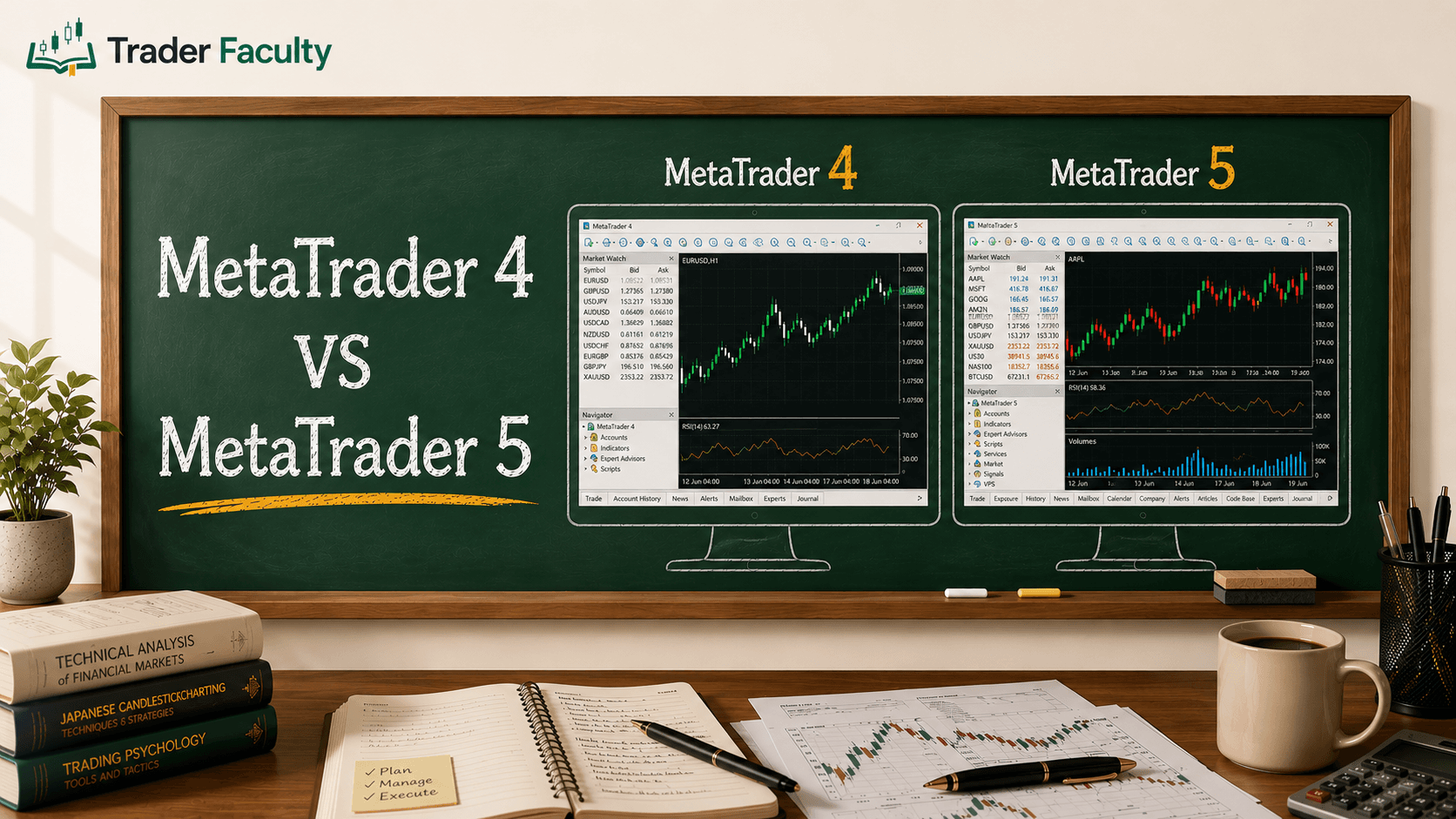
MetaTrader 4 (MT4) is a widely used electronic trading platform that connects you to your broker's live market data so you can analyze charts and execute trades. It features four main windows: Market Watch, Navigator, the central Chart window, and the Terminal for managing active positions.
MetaTrader 4 (MT4) is a widely used electronic trading platform that connects you to your broker's live market data so you can analyze charts and execute trades.
When you first open the software, it can feel like looking at a confusing 1990s airplane dashboard. Most beginners are easily overwhelmed by the clunky interface and harsh default colors.
This guide covers everything you need to know about how to use MetaTrader 4, from navigating the platform to safely executing your first trade.
Quick Takeaways
- MT4 is a software terminal, not a broker itself—you must connect it to a broker account to actually trade.
- The interface revolves around four main windows: Market Watch, Navigator, Chart, and Terminal.
- Customizing your chart colors and saving them as a template makes the platform much easier to read.
- Always double-check your lot size (Volume) before clicking buy or sell to avoid accidentally placing a massive trade.
Is MetaTrader 4 a Broker?
MetaTrader 4 is not a broker; it is simply the software terminal you use to access the financial markets.
Many beginners get confused and think they are depositing money directly into MT4. In reality, MT4 is just the bridge. You open an account with a brokerage firm, deposit your funds there, and then use your login credentials to connect that account to the MT4 platform.
Your broker provides the actual price feed and handles your money, while MT4 provides the charting tools and execution buttons you need to interact with the market.
The Four Main Windows: Navigating the MT4 Interface
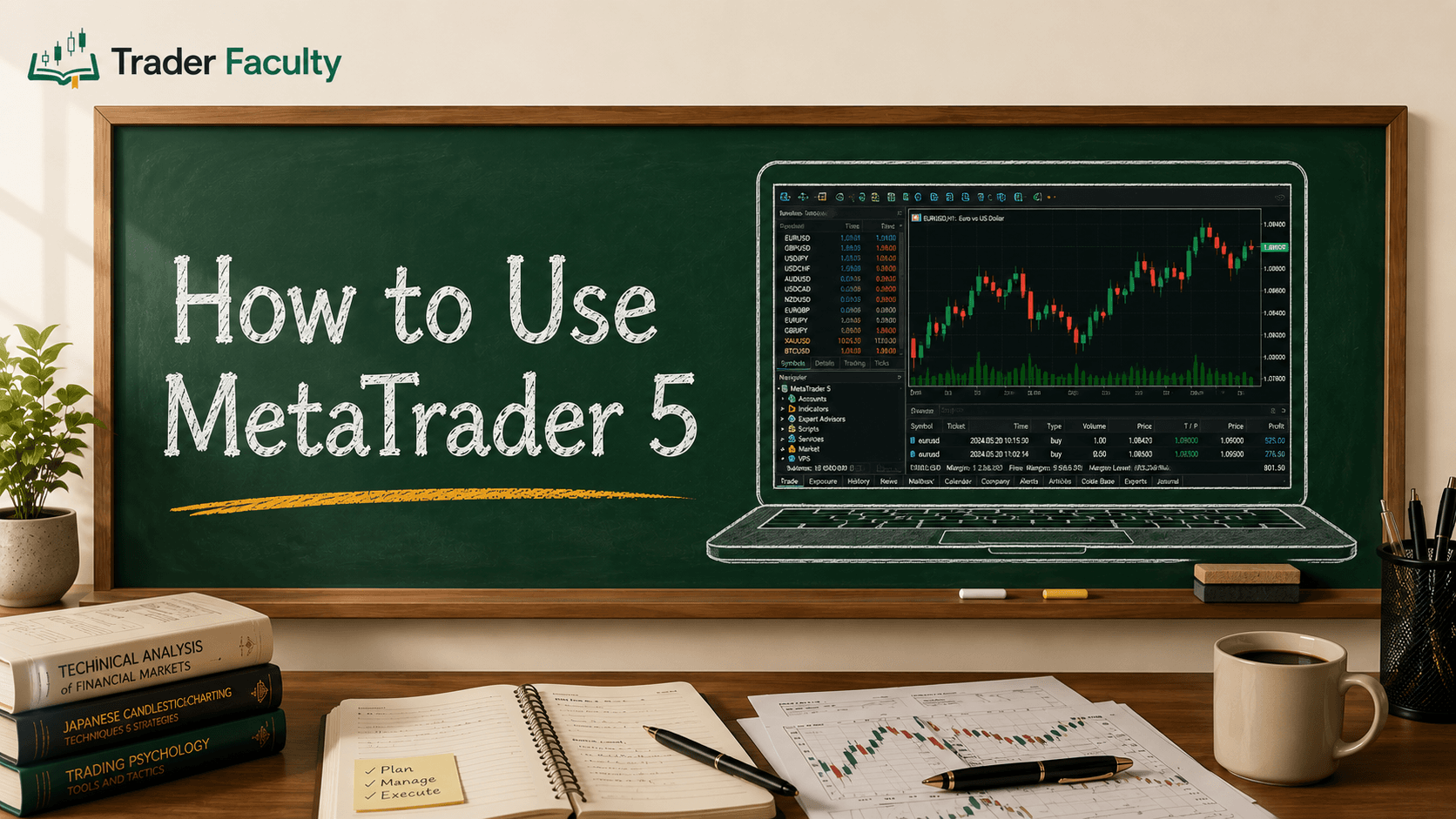
The MT4 workspace is divided into four primary panels that control everything from finding assets to managing active trades. When you first log in, you will see a lot of flashing numbers and charts, but they all fit neatly into these four sections:
- Market Watch (Top Left): This is your list of tradeable assets. It shows the bid and ask prices for everything your broker offers. If you want to open a chart for a specific market, you simply drag the symbol from the Market Watch window directly onto the main screen.
- Navigator (Bottom Left): This window acts as your filing cabinet. It is where you switch between different trading accounts (like moving from a demo account to a live one), and where you find all your technical indicators and automated trading scripts.
- Chart Window (Center/Right): This is the largest section of your screen, displaying the price history of your selected asset. You can have multiple charts open at once and switch between them using the tabs at the bottom of this window.
- Terminal (Bottom): This is your control center for active trades. The "Trade" tab shows your current balance, equity, and any open positions. The "Account History" tab acts as your trading journal, logging every closed trade you have made.
Customizing Your Charts
You can change MT4's default black-and-green charts to a cleaner, more readable format by adjusting the chart properties.
Out of the box, MT4 charts are notoriously harsh on the eyes. To fix this, right-click anywhere on an open chart and select "Properties" (or press F8). Here, you can change the background to white, set the foreground (text and borders) to black, and choose clear colors for your candlesticks—like green for up candles and red for down candles.
Once you have a chart looking exactly how you want it, you do not have to repeat this process every time. Right-click the chart, go to "Template," and click "Save Template." Name it something memorable. The next time you open a new, messy chart, you can simply load your saved template to instantly apply your clean settings.
How to Place a Trade in MT4
Understanding how to use MetaTrader 4 to place a trade starts with opening the Order window and specifying your volume, execution type, and risk parameters.
When you are ready for actual mt4 trading, the most common way to start is by pressing F9 or clicking the "New Order" button at the top of the screen. This brings up the order execution window, which has a few critical fields:
- Symbol: Double-check that this matches the asset you actually want to trade.
- Volume: This is your position size, measured in lots. Typing 1.00 means one standard lot, while 0.01 is a micro lot. This dictates how much money each pip of movement is worth.
- Stop Loss & Take Profit: These fields allow you to set your safety net (where you will exit if wrong) and your target (where you will exit if right).
- Type: You can choose "Market Execution" to enter the trade immediately at the current price, or "Pending Order" to tell the platform to open a trade automatically only if the price reaches a specific level in the future.
Once your parameters are set, you simply click the red "Sell by Market" or blue "Buy by Market" button. The trade will instantly appear in your Terminal window at the bottom of the screen.
Device Options: PC, Web, and Mobile
You can access MT4 across multiple devices, though the desktop version offers the most comprehensive features.
If you want the full experience with custom indicators, templates, and the ability to run automated strategies, you will want the MT4 download for your personal computer (PC). This is the flagship version of the software and provides the most stable environment for chart analysis.
If you are using a borrowed computer or cannot install software, the MetaTrader 4 webtrader allows you to log in and trade directly from your internet browser. It is a stripped-down version, but it gets the job done for basic execution.
Finally, for checking positions on the go, the MetaTrader 4 android and iOS apps are excellent for managing open trades, though they are generally too small and limited for conducting heavy technical analysis.
Common MT4 Mistakes That Cost Beginners Money
New users often lose money not because of bad trading ideas, but because they misunderstand how MT4 handles trade sizing and order execution.
The most dangerous error is the "fat finger" volume mistake. Because MT4 measures volume in lots rather than a simple dollar amount, a beginner might want to risk a very small amount but accidentally type "1.00" (a standard lot) instead of "0.01" (a micro lot).
This makes the trade one hundred times larger than intended, which can blow up a small account in minutes. Always double-check the volume field before clicking buy or sell.
Another common frustration is confusing points and pips. In the order window, setting a pending order or trailing stop might require you to input the distance in "points." In MT4, a point is usually a fraction of a pip (one pip equals ten points). If you want a 10-pip stop loss, you often need to type in 100 points.
Finally, beginners often accidentally close the Market Watch or Terminal windows and panic, thinking their trades are gone. If this happens, you can easily bring them back using the keyboard shortcuts Ctrl+M for Market Watch and Ctrl+T for the Terminal.
Conclusion
MetaTrader 4 might feel outdated when you first launch it, but it remains an industry standard because it is highly reliable and customizable. By taking the time to organize your workspace, save a clean chart template, and practice setting the correct lot sizes on a demo account, you can quickly turn a confusing dashboard into a streamlined workspace.
Once you feel comfortable navigating the interface, you can start looking into other trading tools to help refine your strategy and execution.
Frequently Asked Questions
Is MetaTrader 4 a broker?
No, MetaTrader 4 is strictly a software terminal. You must open an account with a separate brokerage firm and connect that account to the MT4 platform to trade.
How much money do you need to start on MetaTrader 4?
The MetaTrader 4 software is completely free to download and use. The amount of money you need to trade depends entirely on the minimum deposit requirement set by the broker you choose to connect to the platform.
Can you still use MetaTrader 4?
Yes, despite the release of newer platforms like MetaTrader 5, MT4 remains fully functional and is still one of the most widely supported trading platforms among brokers worldwide.
How do you place a trade on MetaTrader 4?
You can place a trade by clicking the "New Order" button or pressing F9. This opens a window where you set your lot size, stop loss, and take profit before selecting either a market or pending order.
Can you trade crypto on MT4?
Yes, you can trade cryptocurrency on MT4, but it depends on your broker. If your connected broker offers crypto assets, they will appear in your Market Watch window alongside forex and stocks.
The Trader Faculty Team writes and reviews every guide together — pairing hands-on market experience with a curriculum-first approach to trading education. One good syllabus, taught in the order that makes you better.